Bringing Shared iOS Devices to the Next Level with MSAL and the WS1 SDK
While CICO with Accounts clearing and App Data clearing as well as MSAL integration is in UEM since the 24.10 UEM release and broadly adopted in the Android space, it is now time to have a deeper look on iOS/iPadOS. This Blog is not covering Shared iPad for Business, it only covers CICO with Hub on iOS as well as iPadOS. The main benefit is that with MSAL the User can login in Hub and there will be no additional Login for Microsoft Teams or Workspace ONE Web, all UEM Profiles (Device) of iOS can be used inc. Certificates and Mobile SSO and also the device will be marked as managed and compliant in Entra. Once the user logs out , the Account of MSAL Apps and WS1 Apps are removed , so the next user will not have Access to the data. Just keep in mind that this does not work on Photos or Safari App, only Workspace ONE SDK and MSAL enabled Apps.
The following prerequisites need to be fulfilled:
- Workspace ONE Intelligent Hub 25.09 iOS or newer
- UEM 26.02 and Feature Flag ConditionalAccessIosSharedDeviceSupportFeatureFlag or newer
- Supported iOS Device enrolled with CICO with Hub (not Shared iPad for Business) recommended with Automated Device Enrollment (ADE/DEP)
- Setup MSAL for Android (https://digitalworkspace.one/2025/07/10/using-msal-integration-with-workspace-one-launcher/)
As iOS uses the same Entra / UEM integration the Android make sure you follow the Android blog and have the “Android Shared Device Check out” enabled. This button might be renamed in future to Mobile instead of Android .
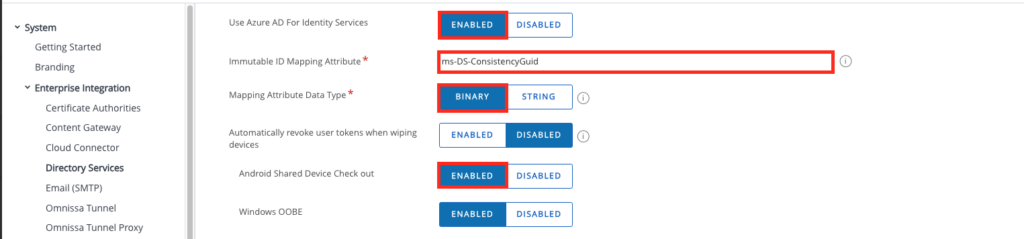
Device Settings
As mentioned with in the Requirements it is recommended to use ADE for Enrollment as then the Supervised features are there as well. However technically MSAL works as well without supervision. In the ADE profile make sure the following settings are set:
– Authentication : OFF
– Staging Mode : Multi User
– Default Staging User : Select your Multiuser Staging User
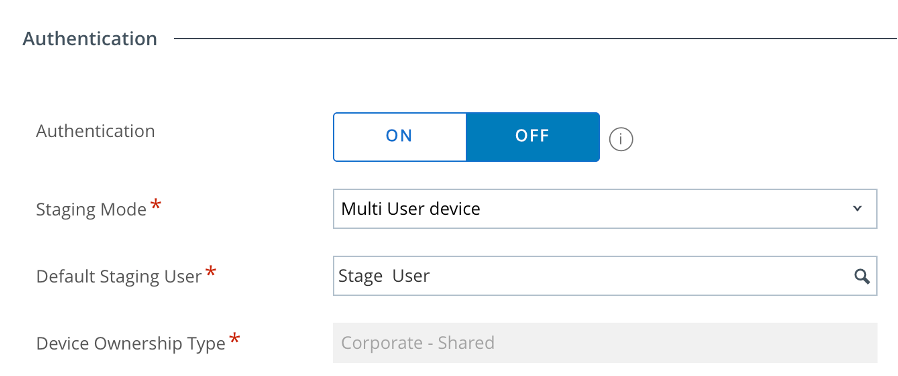
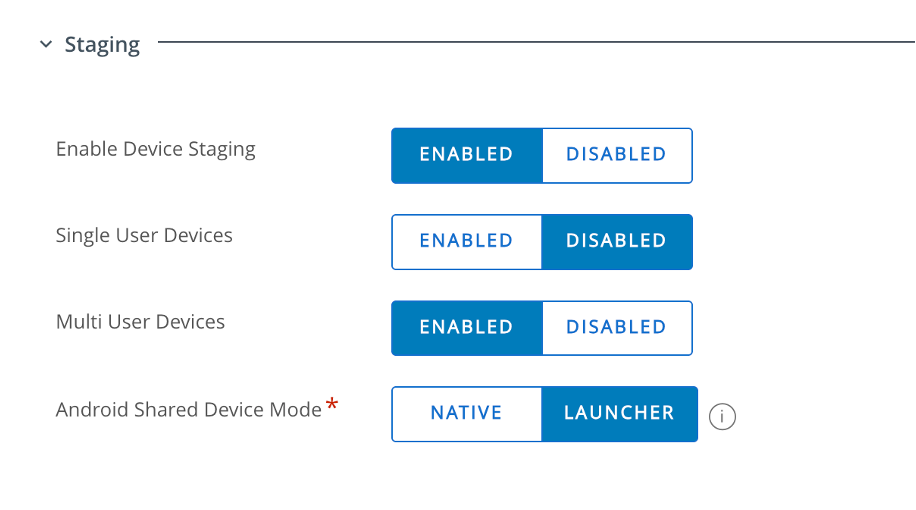
the selected User needs to have the following settings in the Staging section :
– Enable Device Staging : Enabled
– Single User Devices : Disabled
– Multi User Devices : Enabled
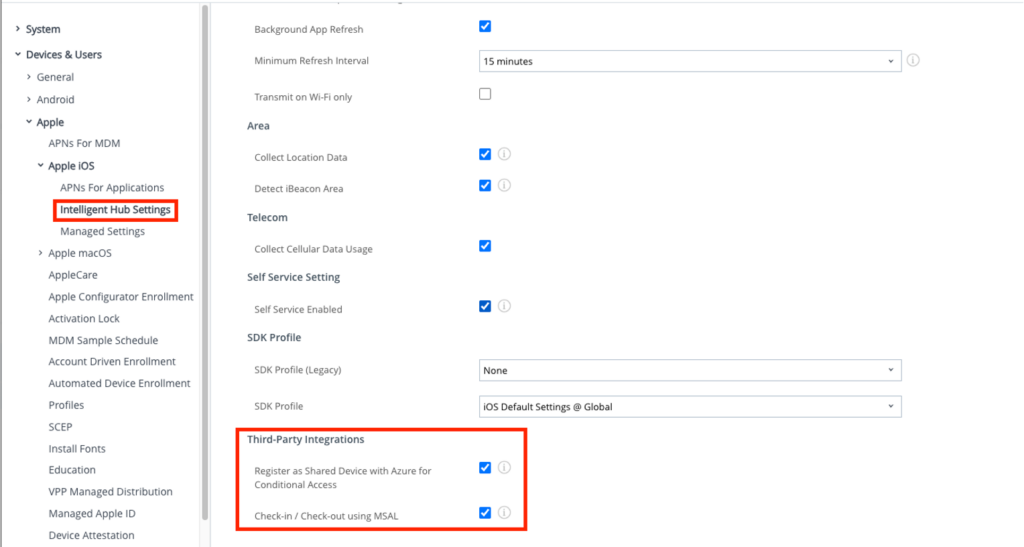
In the Intelligent Hub Settings make sure the following setting in the OG of the Device needs to be set:
– Register as Shared Device with Azure for Conditional Access : Enabled
– Check-in / Check-out using MSAL : Enabled
Profiles for all Users :
To enable the Entra Registration and the MSAL login the profile for the SSO Extension needs to be installed for the Staging user as well as the actual user .
Create a SSO Extension profile for iOS:
Extension Type: Generic
Extension Identifier: com.microsoft.azureauthenticator.ssoextension
Type: Redirect
URLs (one per row): https://login.microsoftonline.com,https://login.microsoft.com,https://sts.windows.net
Additional Settings (Custom XML):
<dict>
<key>device_registration</key>
<string>{SharedDeviceRegistrationToken}</string>
</dict >
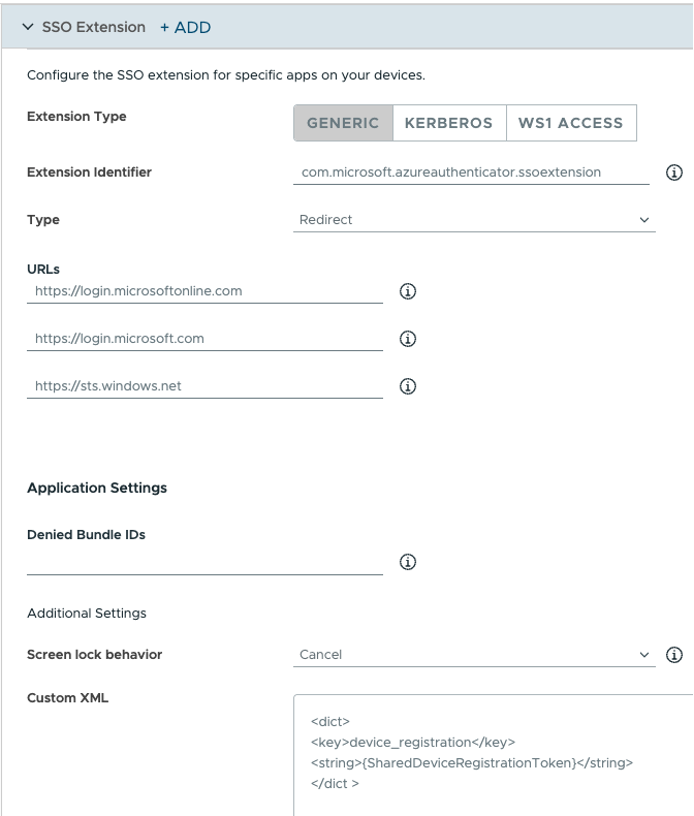
Make sure that Microsoft Authenticator is installed for Staging User and Logged in user as well.
Once the Profile is installed the Authenticator will look like this :
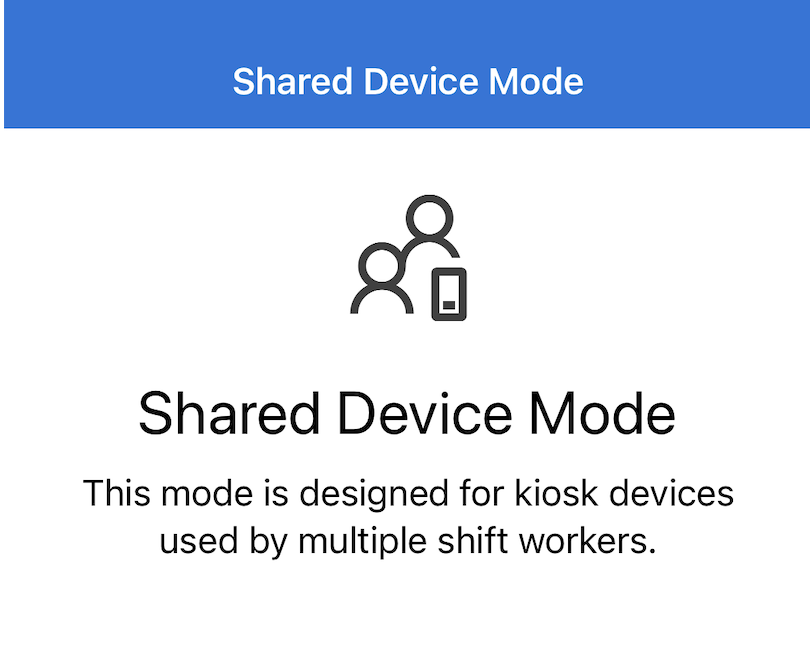
Profile Staging User :
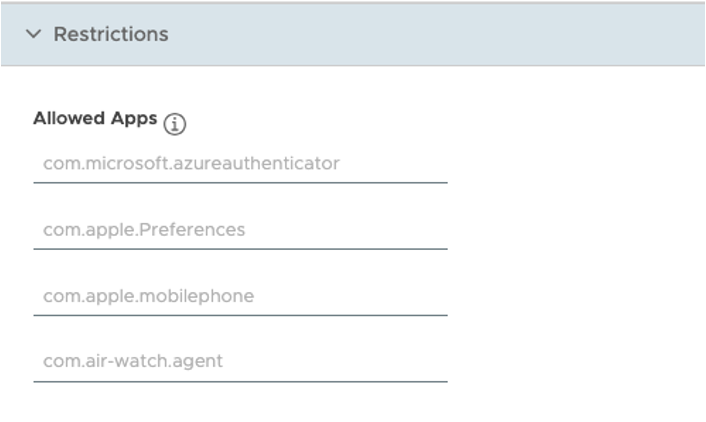
The ‘Allowed Apps’ policy in the Restriction Profile was used to display only the required applications, such as Hub and Authenticator.
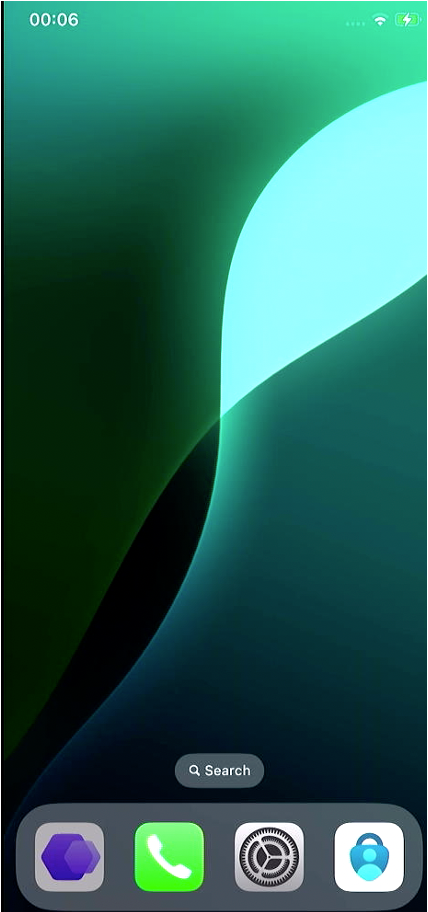
For a better usability the “Home Screen Layout” Profile was used to unify the experience and icon ordering :
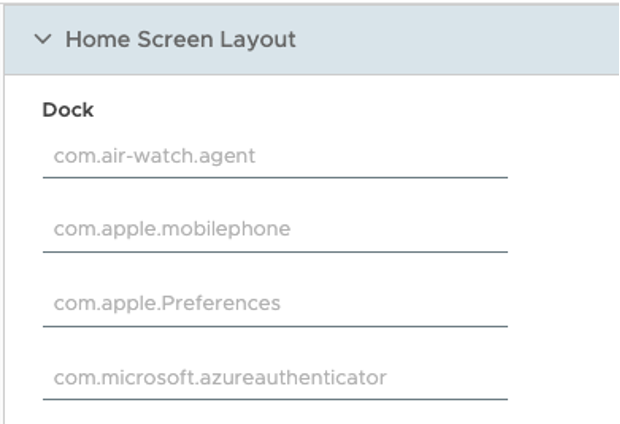
this resulted in the following HomeScreen when no user is logged in:
Profile Logged in User
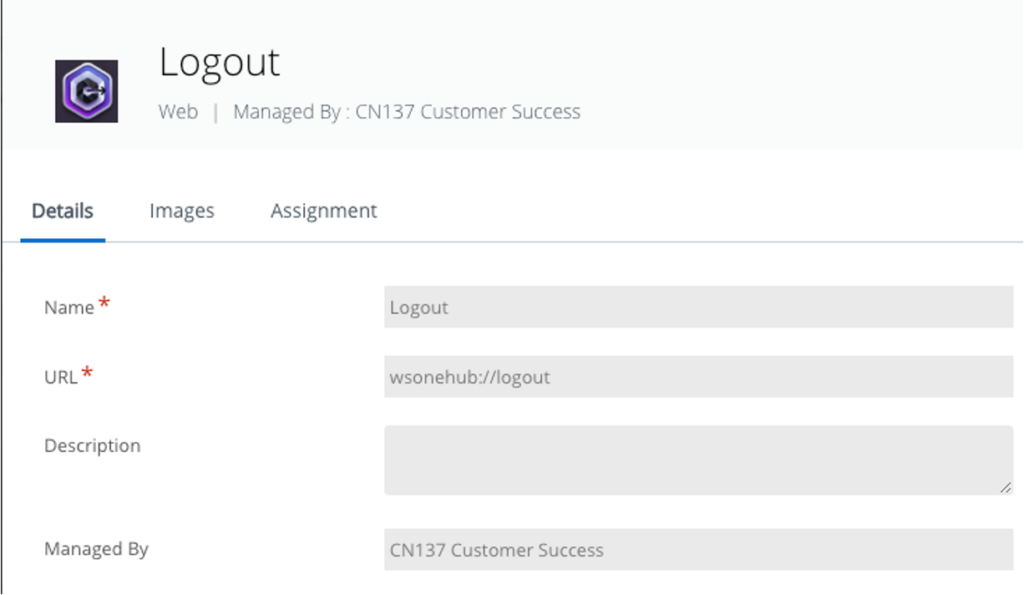
To ease the logout Experience a Webclip can be used with “wsoenhub://logout” as the URL for the Logout Button with a Deeplink to Hub .
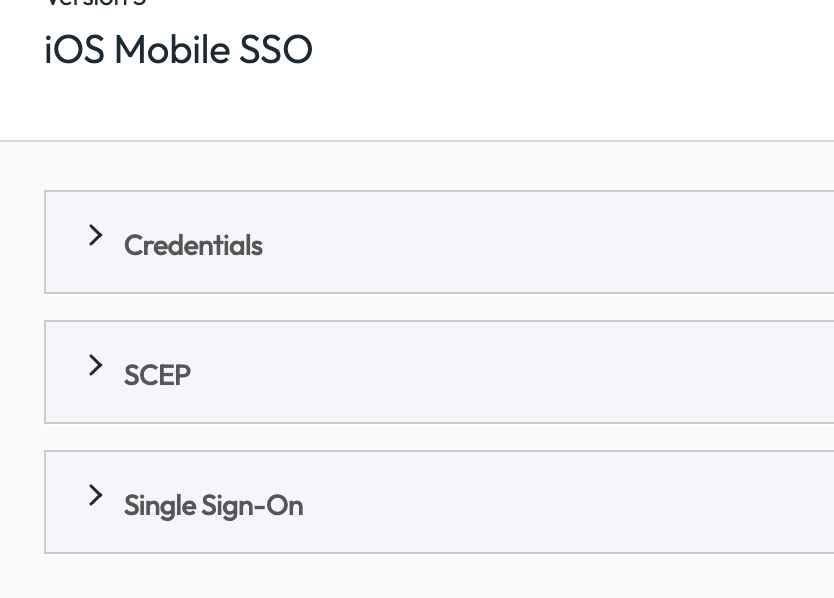
for Non-MSAL Applications also Mobile SSO can be used, this is optionally
Additional the following Apps are assigned to the Users :
Workspace ONE Web as Browser
Microsoft Teams as a Chat tool.
Optionally it would be recommended to use the Allowed Apps also for the users I did not do that for the Demo , but recommend it for the production use , especially to hide Apps like Safari and Notes where data will not clear on CICO. The new Integration will just add the the current SDK Clear the Accounts clear for MSAL.
Device Demo
For better Visibility in this Demo as MSAL App the Microsoft Teams and as SDK App the Workspace ONE Web App was used. It shows that login in with User1 , MS Teams is not asking for Authentication due to MSAL and Workspace ONE Web used in combination to Mobile SSO. Once User1 Logs out via the Weblink the Apps are hidden again. Then once User 2 Logs in , the MS Teams App will simply work with MSAL and also Web will have a fresh Cache and Mobile SSO for User2 works.

vExpert, blogger and VMware & Omnissa champion. Worked 10 years as a Architect for a partner before joining VMware in 2017. Moved to Omnissa in 2024.