Bringing automations for Apple Devices to the next Level with Omnissa Intelligence and Freestyle
We are seeing more and more customers moving from the Standard or Advanced SKUs to the Enterprise or Essential SKUs of Omnissa—and this shift brings significant benefits as it included Automations within the Intelligence Platform with approx. 29 UEM Actions. One major improvement is the introduction of Apple Custom Command Support in Intelligence in mid February . This means you can now build any workflow and send commands such as setting the software update cadence, configuring the default browser, and much more. Even better: if Apple releases a new command in the future, it can be used immediately—without requiring a UEM update or an Intelligence update. This capability greatly enhances automation for managing the Apple fleet and enables Omnissa to deliver even more streamlined and efficient device management.
So , let us check out the latest added action in February 2026.
Setup of a Workflow
Let us set it up, first login to Intelligence and ensure the Workflow Connector for UEM is Setup and Authorized:

Now , let us Create a Workflow in the Console in the Section Freestyle Workflows:

As a example I will use the Default Browser , but other things listed below will work as well.
So first we select the Data Source and the Filters, in my case I use the App Install status of the iOS Web App.

then we add the UEM Action called “Send Custom Command(Apple) to the Workflow.
Here we need to add the Custom Command (see down below for samples)
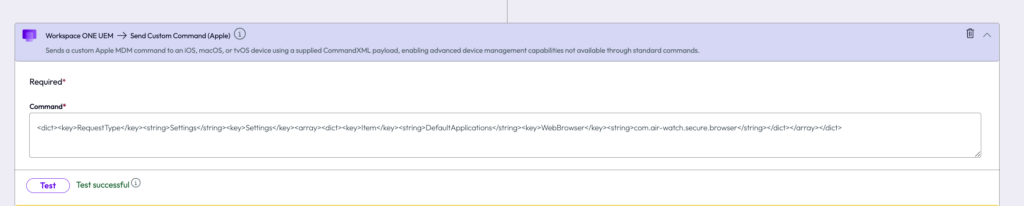
Then we are finished and can enable the Workflow. It is always recommended to check the “Potential Impact” and ensure the Command is working as expected.

As usual you will be able to add a tag to the Device in case you want to track the Command usage as well in UEM or build Smart groups out of it. Also other actions can simply be added
Samples of Custom Commands
Here a list of Custom Command I tested during the Beta phase of the Automations. Keep in mind that Actions like Return to Service run a wipe the device so be careful with this impactful commands. Also the Test button issues the Command. The following Commands have been tested on iOS 26:
Default App (like) Browser
<dict><key>RequestType</key><string>Settings</string><key>Settings</key><array><dict><key>Item</key><string>DefaultApplications</string><key><strong>WebBrowser</strong></key><string><strong>com.air-watch.secure.browser</strong></string></dict></array></dict>eSIM
<dict><key>RequestType</key><string>RefreshCellularPlans</string><key>eSIMServerURL</key><string><strong>https://eSim.Activation.Server.URL</strong></string></dict>Enable Lost Mode
<dict><key>Message</key><string><strong>Lock Message</strong></string><key>PhoneNumber</key><string><strong>+49-173-123456</strong></string><key>RequestType</key><string>EnableLostMode</string></dict>Disable Lost Mode
<dict><key>Message</key><string><strong>Lock Message</strong></string><key>PhoneNumber</key><string><strong>+49-173-123456</strong></string><key>RequestType</key><string>DisableLostMode</string></dict>Set Update Cadence
`0`: Presents both options to the user.
`1`: Presents the lower numbered (oldest) software update version.
`2`: Presents only the highest numbered (most recent) release available for the device.
<dict><key>RequestType</key><string>Settings</string><key>Settings</key><array><dict><key>Item</key><string>SoftwareUpdateSettings</string><key>RecommendationCadence</key><integer><strong>1</strong></integer></dict></array></dict>Set Wallpaper
<dict><key>RequestType</key><string>Settings</string><key>Settings</key><array><dict><key>Image</key><data><strong>INSERTBase64DATAHERE</strong></data><key>Item</key><string>Wallpaper</string><key>Where</key><integer>3</integer></dict></array></dict>Return to Service without Wifi
<dict><key>DisallowProximitySetup</key><true/><key>RequestType</key><string>EraseDevice</string><key>ReturnToService</key><dict><key>Enabled</key><true/></dict></dict>Return to Service with Wifi
<dict><key>DisallowProximitySetup</key><true/><key>RequestType</key><string>EraseDevice</string><key>ReturnToService</key><dict><key>Enabled</key><true/><key>WiFiProfileData</key><data>INSERTBase64DATAHERE</data></dict></dict>More commands can be used , please check the Apple Documentation for Details : https://github.com/apple/device-management/tree/f878dea98fb88293a3686e44bcfb891f8e78f98f/mdm/commands

vExpert, blogger and VMware & Omnissa champion. Worked 10 years as a Architect for a partner before joining VMware in 2017. Moved to Omnissa in 2024.